Showing posts with label Near. Show all posts
Epson STylus Tx125 near end service life repair

Epson STylus Tx125 near end service life repair

This program helps repair the problem of your printer, the printer Epson Stylus TX125 with an error of alternate blinking and message of  "Parts inside printer near end service life". But before follow the procedure, make sure that the power of the printer is on, usb cord properly connected to your computer and most of all there’s no pending print task in your printer. Download Windows 7 32 bit and Windows XP compatible Epson Resetter.
Follow the steps below:
  • Open AdjProg.exe
  • Click Accept
  • Click Select button, and click your printer model
  • Click "OK"
  • Click the Particular Adjustment Mode
  • Select Waste ink pad counter
  • Click OK
  • Click Initialization (this will reset counter)
  • Turn off the printer
  • Then turn on again.
Epson Stylus Tx300f near end of service life error

Epson Stylus Tx300f near end of service life error

Troubleshoot the Epson Stylus Tx300f  Printer with a problem of "parts inside printer near end service life” or “parts inside printer end of service life”, but before follow the procedure, make sure that the power of the printer is on, usb cord properly connected to your computer and most of all there’s no pending print task in your computer. Download  utility  Windows 7 32 bit or Windows XP compatible epson resetter. If it wont work to Windows 7, just right click the program and set to compatibility mode

Follow the steps below:

Click to
  • Open AdjProg.exe
  • Click Accept
  • Click Select button, and click your printer model
  • Click "OK"
  • Click the Particular Adjustment Mode
  • Select Waste ink pad counter
  • Click OK
  • Click Initialization (this will reset counter)
  • Turn off the printer
  • Then turn on again.
Done

Epson R390 Near end service life error

Repair the error parts inside printer end service life or parts inside printer near end of life.r390
Before opening the Epson Resetter program , adjust first the date of your computer depending of what kind of Epson Resetter  you have. And make sure there is no pending print task in your printer. This Epson Resetter is for the Epson Printer with a model  Epson R390.
Follow the guide below:
  • Double click AdjProg.exe
  • Click the “Accept” button
  • Click the "Select" button. and select your printer model then click "OK"
  • Click the “Particular adjustment mode” button
  • Select on the “Waste ink pad counter” and click “OK” button
  • Click on the “Initialization” button to reset the counter
  • Turn off the printer
  • Turn the printer on again.
Finish…

Click here to download the Epson resetter program

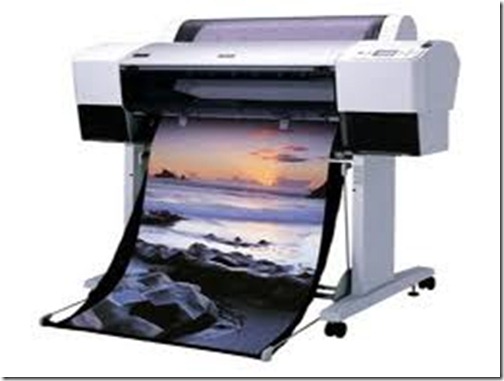
Fix Epson Stylus Pro R7880 NEar end Service Life

Repair the Printer error message "parts inside printer near end service life” or “parts inside printer end of service life”, but before follow the procedure, make sure that the power of the printer is on, usb cord properly connected to your computer and most of all there’s no pending print task in your printer. Click here to download the program Epson Resetter. This Epson Resetter is for Epson Wide Printer, Epson Stylus R Series Epson R7880 Printer.

The Model of Epson Stylus Pro  R7880 Printer
Epson
Follow the steps below:
  • Open AdjProg.exe
  • Click Accept
  • Click Select button, and click your printer model
  • Click "OK"
  • Click the Particular Adjustment Mode
  • Select Waste ink pad counter
  • Click OK
  • Click Initialization (this will reset counter)
  • Turn off the printer
  • Then turn on again.
The Epson Stylus CX7300 Near End of Service

The Epson Stylus CX7300 Near End of Service

Reset  the printer problem and print back to normal after following the troubleshooting guide. A Message “printer near end service life” or “printer end of service life”, it does not mean that you should throw the printer. There was no problem of your printer, the problem is that’s its maximum counter  limit value have reach to its maximum allowed.To fix the this kind of problem you need to download the program and before opening the Epson adjustment utility, make sure that the power of the printer is on, properly connected to your computer and most of all there’s no pending print task in your printer.

The Epson Stylus  CX7300 Printer Cartridges

Follow the steps below:
  • Open AdjProg.exe
  • Click Accept
  • Click "OK"
  • Click the Particular Adjustment Mode
  • Select Waste ink pad counter
  • Click OK
  • Click Initialization (this will reset counter)
  • Turn off the printer
  • Then turn on again.
Finish

Click here to download the resetter