Showing posts with label service. Show all posts
Service Canon MX328 Printer

Service Canon MX328 Printer

Canon Pixma MX328 is one of the Inkjet multifuction (Print, Scan, Copy, Fax) printer from Canon. Like general case of printer, after filled by ink usually ink level not full. At some cases of printer, after ink level empty, printer cannot be used to print.

Here the Solution to reset the ink level for Canon Pixma MX328 follow this steps to reset the ink level in your canon MX328.

Option 1
  • Disconnect the power cable
  • Connect it while holding down the power button
  • With the power button still down
  • press twice the "Cancel" red button
  • Release the power button
  • The printer turns into a  factory mode...(wait for about 10 seconds, until the message "Idle" appears)
  • Press the ">" (next to the "OK" button) once."Shipping Mode 3"
  • Press the "OK" button
  • Press "OK" again for "Without cleaning"
  • A test page will print
  • Open the cover
  • Disconnect the power cable again
  • Take out both cartridges
  • Close the cover
  • Connect the power cable once again
  • Turn the printer on
  • Now just put the cartridges back
Opton 2
  • Switch off the Canon MX328 and disconnect the power cable
  • While press and hold the power button, Connect the power cable to electric socket
  • While pressing the power button, press the “Cancel” button (red button)
  • Now release the power button and the printer turns into a kind of factory mode. Wait for 10 seconds until it says “idle”
  • Press “>” (next button) once “Shipping Mode 3?
  • Press the “OK” button. Press “OK” again for “without cleaning”
  • A test page will print
  • Open the cover, like you are about to change the cartridges
  • Disconnect the power cable again without switch off the printer
  • Take out the both cartridges
  • Close the cover
  • Connect the power cable and turn on the printer
  • put the cartridges back and the ink level in the canon Pixma MX300 have full again.
To finish resetting.. Download the software reset program
Software

Click here to Download Canon Service Tools
Epson Stylus L100 End of service Life Error

Epson Stylus L100 End of service Life Error

Repair the ERROR of Epson Inkjet  L100 printer parts inside printer near  end of service life, waste ink pad counter overflow error.

Follow the intructions below to reset the protection counter
Download Windows Xp, Windows 7 32 bit reset program: the Epson Resetter 

Open the program
  • Click “Accept” button to open the program
  • Click “Select” button. and choose your printer model then click “OK”
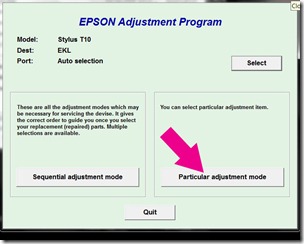
  • Click “Particular adjustment mode” button
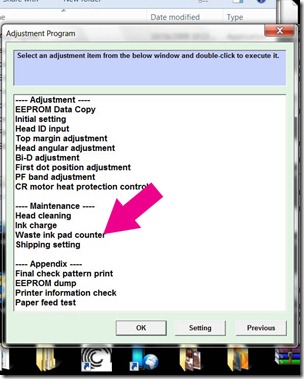
  • Select on “Waste ink pad counter” and click “OK” button
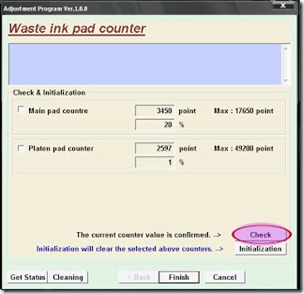
  • Check on Main pad counter and click on “Initialization” button to reset the counter to 0
  • Turn off the printer as a program instructed then turn on again
  • Its done!
Epson STylus Tx125 near end service life repair

Epson STylus Tx125 near end service life repair

This program helps repair the problem of your printer, the printer Epson Stylus TX125 with an error of alternate blinking and message of  "Parts inside printer near end service life". But before follow the procedure, make sure that the power of the printer is on, usb cord properly connected to your computer and most of all there’s no pending print task in your printer. Download Windows 7 32 bit and Windows XP compatible Epson Resetter.
Follow the steps below:
  • Open AdjProg.exe
  • Click Accept
  • Click Select button, and click your printer model
  • Click "OK"
  • Click the Particular Adjustment Mode
  • Select Waste ink pad counter
  • Click OK
  • Click Initialization (this will reset counter)
  • Turn off the printer
  • Then turn on again.
Epson Stylus TX320f End of service life eror

Epson Stylus TX320f End of service life eror

Troubleshoot the Printer problem "parts inside printer near end service life” or “parts inside printer end of service life”, but before follow the procedure, make sure that the power of the printer is on, usb cord properly connected to your computer and most of all there’s no pending print task in your printer. Download Windows 7 Epson resetter here. This program is for Epson Printer with a model Epson Stylus TX320f.

Just Follow the steps below after you finish download the epson resetter :
  • Open program
  • Click Accept
  • Click Select button, and click your printer model
  • Click "OK"
  • Click the Particular Adjustment Mode
  • Select Waste ink pad counter
  • Click OK
  • Click Initialization (this will reset counter)
  • Turn off the printer
  • Then turn on again.
Epson Stylus TX410 to Epson TX415 end of service life error

Epson Stylus TX410 to Epson TX415 end of service life error

Epson Stylus TX410 and Epson TX415 printer problem parts inside printer near end service life, parts inside printer end of service life or ink overflow error.

Follow the steps below:
  • Open program, Click Accept
  • Click Select button, and click your printer model,  Click "OK"
  • Click the Particular Adjustment Mode
  • Select Waste ink pad counter, Click OK
  • Click Initialization (this will reset counter)
  • Turn off the printer , then turn on again.
Finish
Epson Resetter for Windows XP and Windows 7 here to download
Epson Stylus Tx300f near end of service life error

Epson Stylus Tx300f near end of service life error

Troubleshoot the Epson Stylus Tx300f  Printer with a problem of "parts inside printer near end service life” or “parts inside printer end of service life”, but before follow the procedure, make sure that the power of the printer is on, usb cord properly connected to your computer and most of all there’s no pending print task in your computer. Download  utility  Windows 7 32 bit or Windows XP compatible epson resetter. If it wont work to Windows 7, just right click the program and set to compatibility mode

Follow the steps below:

Click to
  • Open AdjProg.exe
  • Click Accept
  • Click Select button, and click your printer model
  • Click "OK"
  • Click the Particular Adjustment Mode
  • Select Waste ink pad counter
  • Click OK
  • Click Initialization (this will reset counter)
  • Turn off the printer
  • Then turn on again.
Done

Epson Workforce 310 Service Error

Repair the error parts inside printer end service life or,  parts inside printer near end of service life.work310
Before opening the Epson adjusment “Adjprog.exe”, adjust first the date of your computer depending of what kind of Epson Resetter you have and make sure there is no pending print task in your printer. This program only works to Epson printer with a model of Epson Workforce 310

Folow the steps below:
  • Open AdjProg.exe
  • Click  Accept
  • Click  Select button, and click your printer model
  • Click "OK"
  • Click the Particular Adjustment Mode
  • Select Waste ink pad counter
  • Click OK
  • Click Initialization (this will reset  counter)
  • Turn off the printer
  • Then turn  on again.
Finish

Click here to download the epson resetter

Epson T50 End of service Life Error

Before opening the Epson adjusment “Adjprog.exe”, adjust first the date of your computer depending of wat kind of Epson Resetter did you have. And make sure there is no pending print task in your personal computer to your printer. Download epson resetter here.   I advise the windows XP program  or Windows 7 32 bit to use this epson resetter. This program might also work to Epson Stylus P60

Open the Adjprog.exe. Click “Accept” button to open the program


Click "Select" button. and choose your printer model then click "OK"
particular
Click “Particular adjustment mode” button.
pad
Select on “Waste ink pad counter” and click “OK” button
initialize
Check on Main pad counter and click on “Initialization” button and the program will reset the protection counter.
  • Turn off the printer as a program instructed then turn on again
  • Finish !
I used the same images of resetter because I don’t have time to open all the program and take a screenshot. Almost all of Epson adjustment program menu is identical.